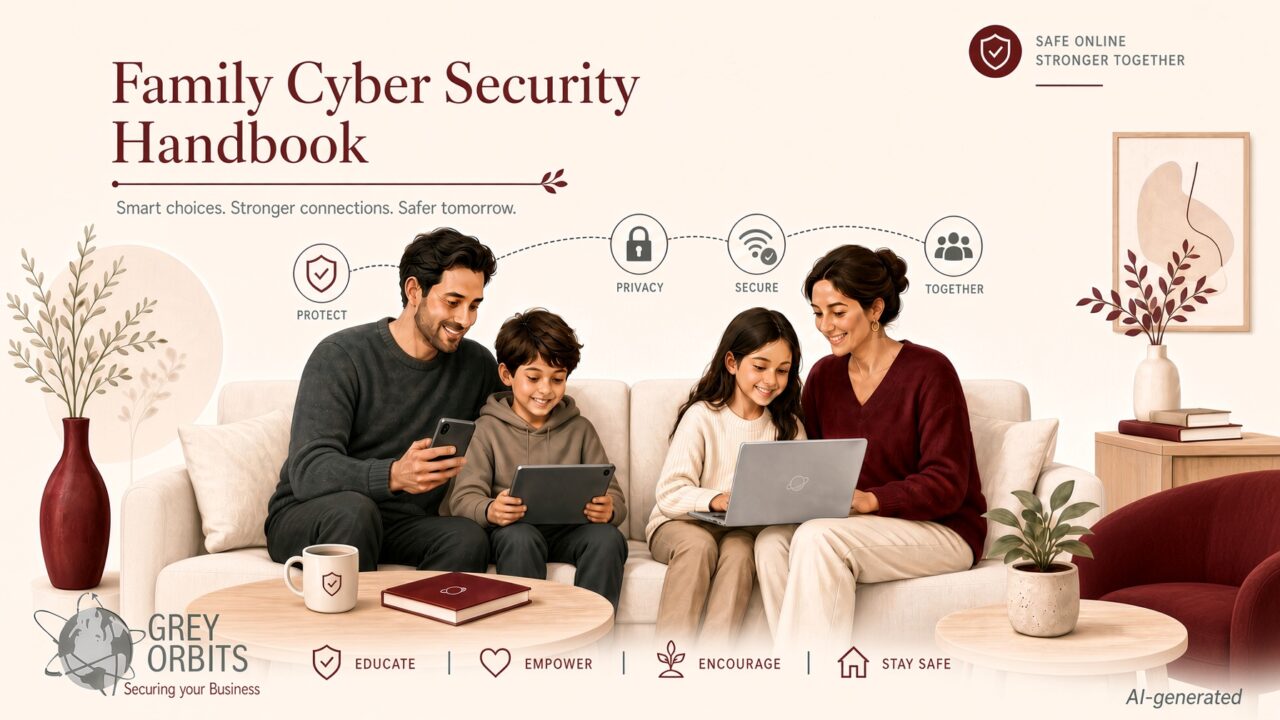
Short. Simple. Safe. For everyone in the family.
Most cybersecurity guidance is written for boards and operating teams. Households face the same risks at a smaller scale: scams that move money in minutes, phones that hold every account, home networks that are rarely locked down, and photos that live on only one device.
This short handbook grew out of requests from family and friends, some of whom have been impacted. It should help you avoid scams, protect your phone, and secure your home Wi-Fi. The goal is simple habits, not expertise.
Treat this handbook as a starting point only. Cybersecurity is a complex subject. Protecting your digital life means staying aware of common pitfalls and making a little effort to learn the basics. Do not rely only on this handbook. It is general guidance, not complete or personalised advice.
For specific situations or if you are unsure, seek professional guidance. If you are not comfortable learning these basics, it is safer not to use services such as internet banking or online shopping.
When unsure, it is always okay to say: “Let me check with my family first.”
In short, Pause. Check. Ask family.
- Never share one-time passwords (OTPs) and codes.
- Never scan a QR code to receive money.
- Use unique passwords. Turn on two-factor authentication (2FA).
- Update everything. Lock your devices.
- Keep guests on a separate network.
- Check with family before sending money.
Download the Handbook: A4 PDF | Letter PDF
1. Stay Safe from Scams
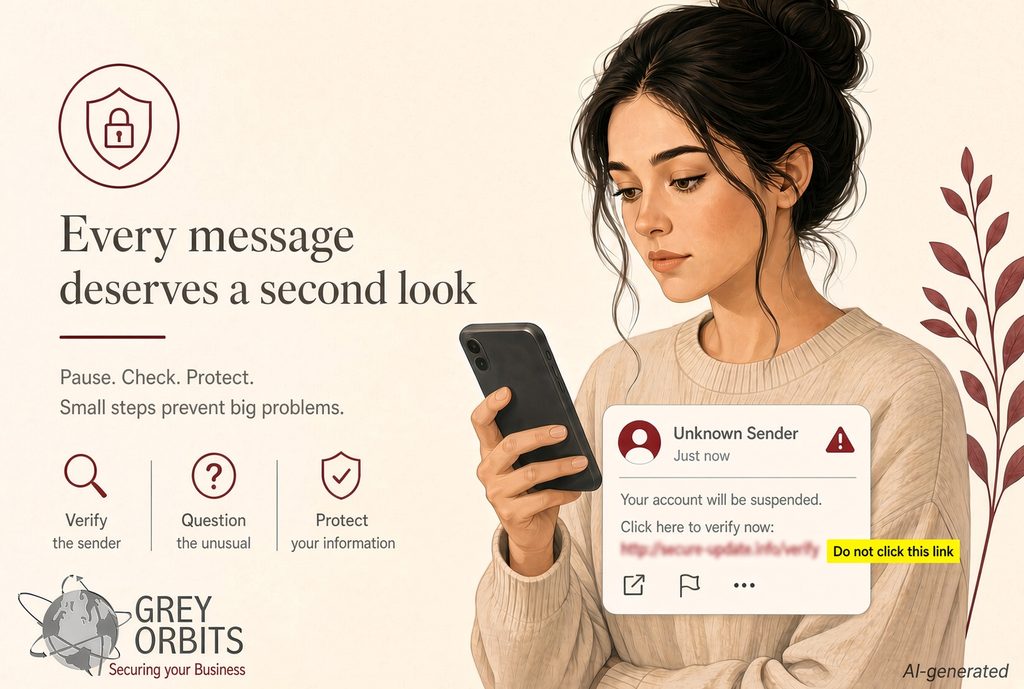
Scammers want you to act fast. Slow down. Check with family.
Golden rule: If someone pressures you to forward an OTP or scan a QR code to receive money, stop.
Money & QR codes
- If someone asks you to forward an OTP sent to your mobile phone, claiming it was sent by mistake, stop; don’t send.
- If someone asks you to scan their QR code to receive a discount, credit, or reward, stop.
- Scanning someone’s QR code is for sending or paying them money, not for receiving money.
- Check the name on the screen before you pay.
- To receive money, show your own QR code.
- Never share OTP, PIN, CVV, or password.
- Real banks and police never ask for these.
Calls & messages
- Do not trust the number shown. Scammers can fake it.
- Hang up. Call the number on your bank card or official app.
- Do not click unexpected links.
- Received a strange message from a friend asking for money? Reach out to them on another phone or to a family member to check.
Protect accounts
- Turn on two-factor authentication.
- Use a different password for every important account.
- Install apps only from official stores.
- Do not share ID documents in chats.
If something goes wrong
- Stop. Do not send more money or information.
- Call your bank using the number on your card.
- Change the password from a trusted device.
- Tell a family member.
Useful links
- Singapore: scamshield.gov.sg · Helpline 1799
- India RBI: rbikehtahai.rbi.org.in
- United States: ic3.gov
2. Protect your Mobile Phone
Your phone is like a wallet. Lock it. Update it. Keep it with you.
Lock & find
- Use a strong PIN, password, fingerprint, or face unlock.
- Set the screen to lock after 30 seconds.
- Turn on Find My iPhone or Find My Device.
- Never leave it unattended in public.
Updates & apps
- Turn on automatic updates.
- Install apps only from official stores.
- Review permissions. Delete unused apps.
- Do not install apps sent by message or link.
Messages & accounts
- Turn on two-step verification for WhatsApp and email.
- Never share verification codes.
- Be careful with links in group chats.
Public Wi-Fi
- Use mobile data for banking and passwords.
- Avoid public Wi-Fi for sensitive tasks.
- Turn off auto-connect to open networks.
If lost or stolen
- Use Find My to lock or erase it.
- Contact your mobile operator to suspend the SIM.
- Change passwords from another device.
- Tell your bank and family.
- If you use a banking or payment app, log out of it or freeze the account if you can.
Useful links
- Apple Find My: support.apple.com/find-my
- Google Find My Device: google.com/android/find
- WhatsApp two-step: faq.whatsapp.com
3. Secure Home Wi-Fi
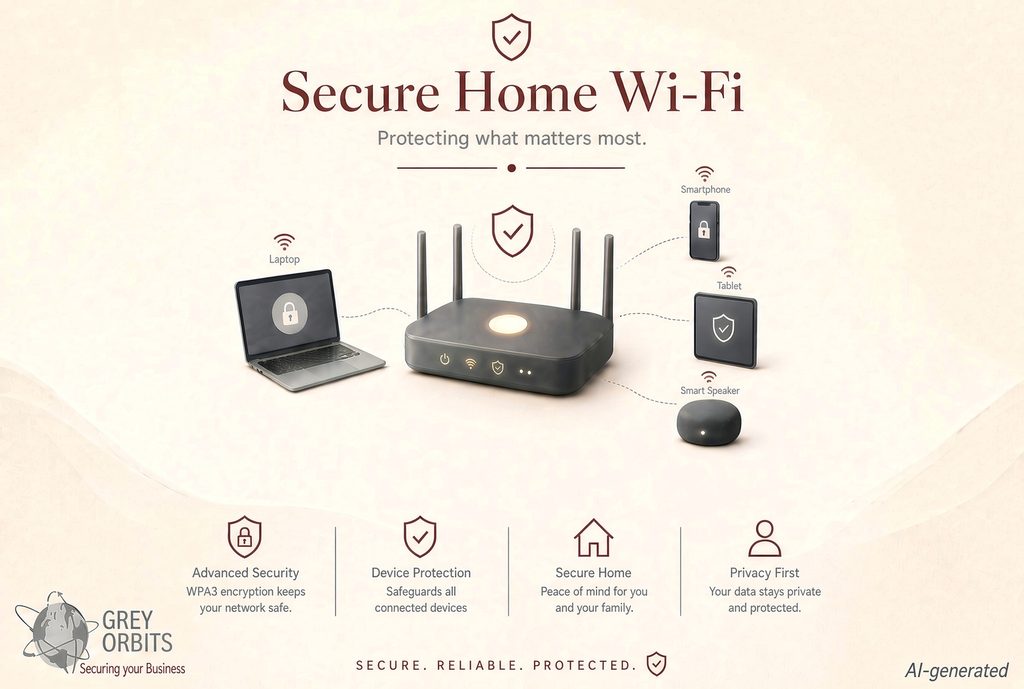
Your router is the front door. A few changes protect every device in the house.
Quick router steps
- Change the router admin password.
- Change the Wi-Fi password. Easy for you to remember, difficult for others to guess.
- Turn on automatic firmware updates.
- Use WPA3 if available. Otherwise, use WPA2-AES. Avoid WEP.
- Turn off WPS and remote administration.
Guest network
- Turn on a guest network for visitors.
- Give it its own strong password.
- Turn on Guest Isolation so guests cannot see your devices.
- Use it for smart plugs, some TVs, and old devices.
Shared printer: See Part 5 for setup and security steps.
Every device
- Turn on automatic updates.
- Keep the built-in firewall and antivirus turned on.
- Lock every screen.
- Do not plug in unknown USB sticks.
For Windows 11 and Mac firewall steps, see Part 5.
Check who is connected
- Look at the router’s connected devices list.
- Compare it with your family’s devices.
- Unknown device? Change the Wi-Fi password.
If something goes wrong
- Change the Wi-Fi and router passwords.
- Update everything.
- Change important account passwords.
Useful links
- CISA Home Network: cisa.gov
- Singapore CSA routers: csa.gov.sg
4. Secure Cloud Storage and Backup
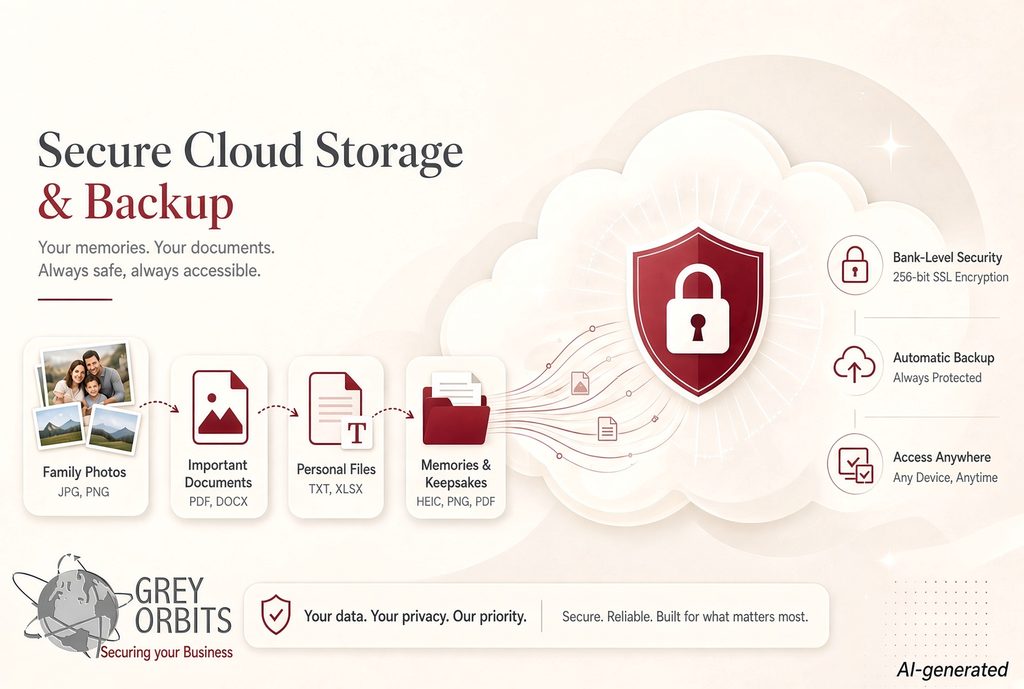
Keep important photos and documents safe.
A cloud copy protects them if you lose your phone or a computer fails.
Why back up
- Phones and computers can be lost, stolen, or broken.
- Ransomware can lock your files.
- A cloud copy lets you restore them quickly.
Simple options
- Apple: Turn on iCloud Photos and iCloud Drive.
- Google: Turn on Google Photos backup and Google Drive.
- Microsoft: Use OneDrive and turn on Known Folder Move for Documents and Pictures.
- Use the free storage first. Add more only if you need it.
Good habits
- Turn on automatic backup.
- Check regularly that new photos are appearing in the cloud.
- For very important documents, keep a second copy on a USB hard disk stored safely offline.
- Do not share your cloud password. Use two-factor authentication.
If something goes wrong
- Sign in on a trusted device and restore your photos or files.
- Change the password and turn on two-factor authentication.
- Tell a family member so they can help.
Useful links
- Apple iCloud: support.apple.com/icloud
- Google Photos backup: support.google.com/photos
- Microsoft OneDrive: support.microsoft.com/onedrive
5. Follow step-by-step. Stay secure.
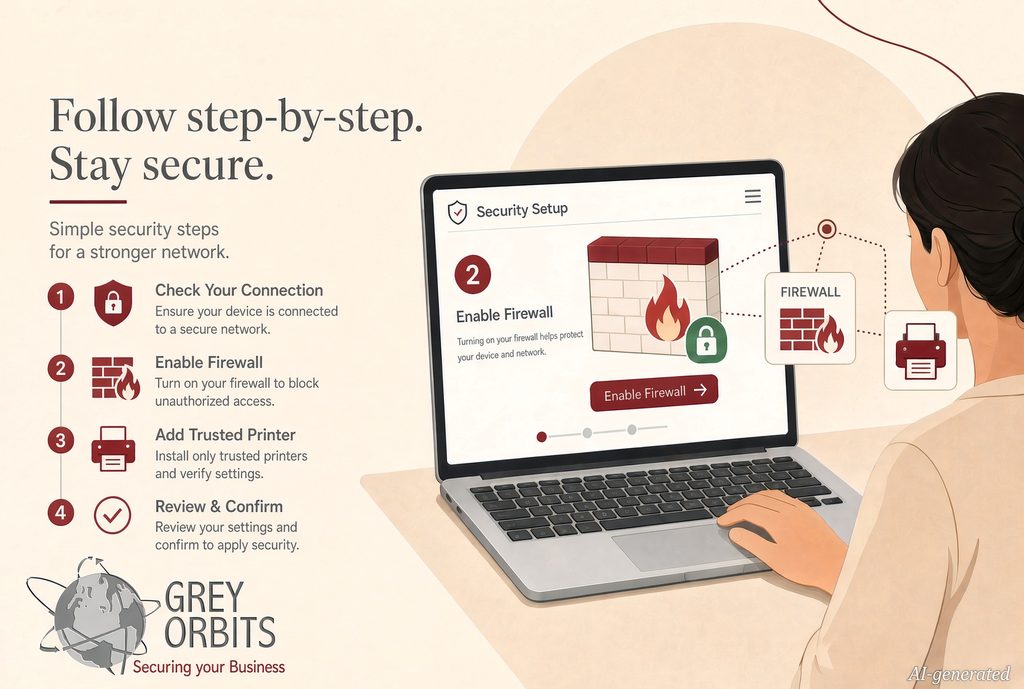
Follow these short steps. Ask a family member if anything is unclear.
Shared printer for guests
- Connect the printer to your main Wi-Fi network.
- In the printer settings, allow guest network access if you want visitors to print.
- Guests can print but cannot see your files or other devices.
- Update the printer firmware when prompted.
- If the printer has its own web page or app, set an admin password and disable remote access from outside the home.
Windows 11 firewall & security
- Click Start → Settings.
- Go to Privacy & security → Windows Security.
- Open Firewall & network protection. Make sure it is On for private and public networks.
- Open Virus & threat protection. Let Microsoft Defender run real-time protection.
- If you feel unsure, run a quick scan from the same screen.
Apple Mac security
- Open System Settings → Network → Firewall. Turn the firewall on.
- Open System Settings → Privacy & Security and check that any security recommendations are reviewed.
- Keep macOS updates turned on.
- Gatekeeper is already on. It only allows apps from the App Store and identified developers.
- Keep XProtect and automatic updates turned on. macOS handles most threats quietly.
- Do not install extra antivirus unless a family member recommends a specific free tool.
Useful links
- Windows Security: support.microsoft.com
- Mac Firewall: support.apple.com
- CISA Home Network: cisa.gov
- Singapore CSA routers: csa.gov.sg
Closing
Small habits protect the people you love. When in doubt, it is always acceptable to say: “Let me check with my family first.”
About the Author
Viren Mantri is the founder of Grey Orbits in Singapore, a Senior Instructor at Quantum Academy, and an Executive Faculty member at Singapore Management University Executive Development. Three decades across Standard Chartered, SC Ventures, UBS, McAfee, and KPMG inform his advisory work on AI, digital currencies, and quantum readiness. He authored the PETALS™ Framework for AI Governance, the Cybersecurity Model for Startups, and the Framework for Cyber Insurance.
© 2026 Viren Mantri, Grey Orbits. Licensed under a Creative Commons Attribution 4.0 International License.
Disclaimer: All views expressed here are entirely mine.